
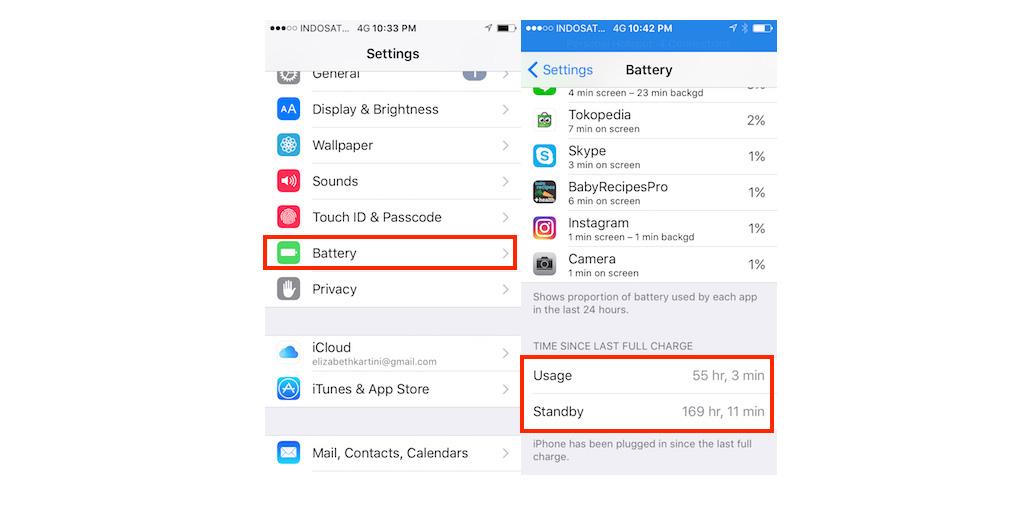

After upgrading your phone to the latest model iOS 13 still, you can face problems related to the battery issues. You can save your battery life by features such as turn off automatic download, reducing brightness, force quitting of apps and many other techniques. The following are the top 10 ways to prevent iOS from draining your iPhone battery life.
Turn Off Location
Most of the device battery is consumed by location services hence it is very important to turn off the battery when it is not in use that will save most of the battery power. when you use applications like google map, after some time you may forget to turn it off and it drains your battery power likewise several applications utilize your location service that will decrease your battery. To turn off the location service follow the below steps
Step1. Go to settings.
Step2: click on privacy.
Step3: Tap on the Location Services and toggle it to turn off.
While using applications if they ask to enable location service then turn it on. After the usage of the application turn off the location and this trick will help you to save the battery life.
Turn off Wi-Fi and Bluetooth
When your iOS 13 uses Wi-Fi and Bluetooth then it will consume almost 90 percent of the battery power. Many of the applications use Bluetooth features to scan the location services and the sharing of files. When you turn off the above features in the control center, they still run in the background hence it is very important to do proper turn off in the setting applications to prevent draining of battery.
To turn off Wi-Fi
- Go to settings.
- Click on the privacy option and Press wi-fi.
- Toggle it to turn off.
To turn off Bluetooth
- Go to settings.
- Tap Privacy and Click Bluetooth.
- Then toggle it to off.
When the application requires Bluetooth or wi-fi to give proper actions then you can simply turn it on.
On the low power mode
It may look simple but it is the best trick to save your battery life and it also prevents activities like downloading in the background, running unnecessary applications, automatic updates, and some unwanted animation effects. This also lowers the brightness of the screen automatically when the phone hits 20 percent of the battery life.
To turn on the lower power mode you can simply call Siri to turn it on or else you can turn it on manually by implementing the following steps.
- Go to settings.
- Find the battery icon
- Tap the lower power mode option.
When your power is low then the device automatically turns it on and it gets off while you plug your device to the charging unit.
Restrict notifications
You may experience many notifications appearing on top of the screen and the Random notifications are going to drain your battery. When a notification comes every time, your device will light up then it will directly affect your battery to prevent notification change in the settings application.
To restrict notification
Step1: Go to the settings app
Step2: press the notification icon
Step3: check the applications in which you have to get a notification and toggle it on and off the applications in which you do not want to receive notifications.
Turn off background refresh
Background app refresh is the main reason for draining your battery life and this feature helps the proper working of applications. Continuous update of application and content can decrease your phone battery drastically and to begin the background refresh follow the below steps.
- Go to settings option
- Tap the general option
- Click the Background App Refresh.
- Tap the Background App Refresh and turn it off.
This will prevent background data refresh of unwanted applications but you want to enable this refresh click on the option through wi-fi only.
Always place your phone facedown
When the phone is facing up, when the notification comes then the device will illuminate and when you receive many notifications then it will drain your battery. So, if you want to keep up your battery percentage always put your iPhone face down that will prevent your battery from light up when you receive notifications. Facedown detection is the feature which uses an ambient light sensor to prevent unwanted light up while getting notifications.
Turn on reduce motion
While you are using animation files in your mobile that can eat up a lot of battery time to prevent this turn on reduce motion.
- Go to settings app.
- Click accessibility option and then tap on the motion.
- Toggle on to reduce motion and you can also turn off Auto-Play Message Effects and Auto-Play Video Previews to save more power.
Activate Airplane mode in low signal areas
When you are in low signal areas, your iPhone is draining the battery by trying to connect the signal. If you're going to low signal areas then put your mobile on the airplane mode this will prevent your battery from draining up.
Turn off Automatic Downloads and App Updates
Apple has a special feature that is designed to sync the app of all your devices. For example, if you download one app from your phone then it will be automatically updated in all the connected devices that will directly drain your battery.
- Go to the Settings app and click general.
- Then tap on iTunes & App Store.
- Turn off automatic download by Toggle off Music, Apps, and Books & Audiobooks.
If you want to prevent automatic updates of application turn off automatic iOS Updates this can be achieved by following the below tips.
Go to settings and tap general< click> software updateautomatic updates< tap>toggle to off the updates.
Activate Dark Mode
The best option to save battery power is enabling dark mode, which is the feature available across all the operating systems including Apple's built-in apps and it also saves your eyes from blue light. Working in dark mode saves more power than the normal mode and to enable the dark mode follow the below steps.
- Go to settings.
- Choose display and brightness options.
- Then click the dark option.
You can also tap on the toggle for the automatic option and then it automatically detects the sunrise and sunset.
Conclusion
By following the above steps, you can save or extend your battery life of your iPhone.For any kind of issues related iphone battery replacement contact us.