
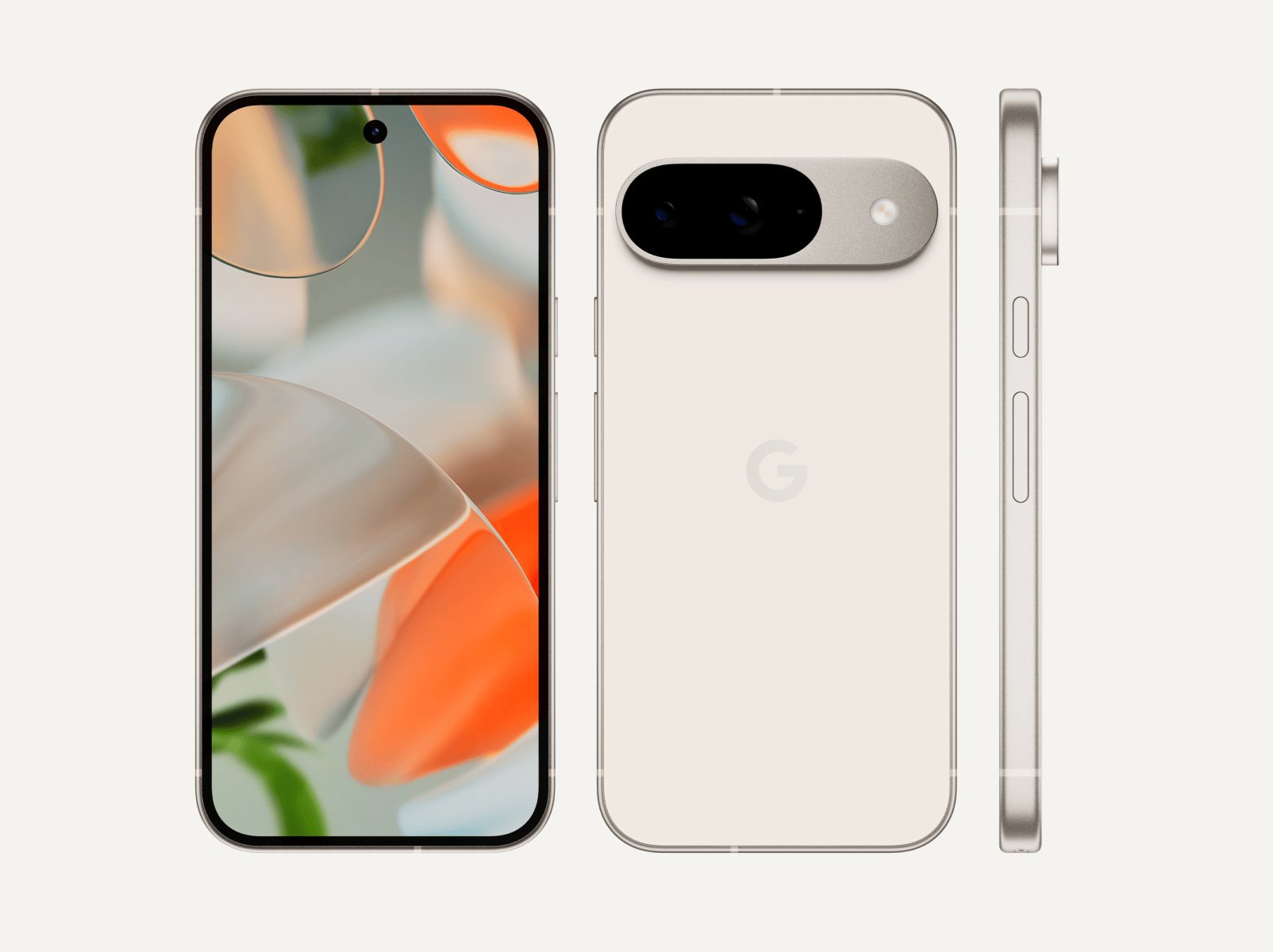

Google Pixel 9 represents excellence and efficiency in design at a time when smartphones have become indispensable parts of daily life. Packed full of cutting-edge features and boasting an intuitive user interface, this device holds untapped potential that remains to be unlocked. Tech enthusiasts looking to hone every facet of their gadget or casual users seeking a better mobile experience could both find invaluable benefit from learning how the Pixel 9 works as its capabilities could make an invaluable difference for either scenario - customizing settings and taking advantage of intuitive shortcuts are among many useful tips this guide offers that could change how you interact with your Pixel 9 phone daily!. Join us as we delve deeper into its details so you get maximum benefit out of this remarkable piece of technology!
Customise Your Pixel 9 Experience
Google Pixel 9 offers many customisation features to allow users to tailor their smartphone experience according to individual tastes and lifestyle needs.. From organising home screens and notifications, these options ensure your device works effectively within its surroundings.
Personalise Home Screen Layout
Customising the Pixel 9 home screen layout to meet both aesthetics and functionality needs can make for a better user experience. Begin by choosing an appealing background; dynamic wallpapers may change throughout the day, or setting static images from your gallery are both options to consider when choosing what background would work for you.
Press and hold on the home screen, select Wallpapers to customise your background image, then choose one from among the available wallpapers.
Organise apps and widgets by dragging them to their appropriate places. Widgets provide valuable at-a-glance data; experiment to discover your ideal arrangement; additionally, consider folders to group similar apps and reduce clutter, making navigation simpler.
Optimise Your Notification Settings
Notification settings can be customised so that only relevant alerts reach you. Start by accessing them through "Settings," selecting "Apps & Notifications," and making necessary modifications.
Launch "Notifications" and review app-specific alerts, while taking advantage of "Do Not Disturb" mode to silence notifications during certain time slots.
Prioritise notifications for essential apps by customising their notification shade - providing quick access to settings like Wi-Fi and Bluetooth without needing to navigate menus. This feature can help streamline interactions, decreasing time spent searching through menus.
Adjusting Display Features
The Pixel 9's display settings offer you plenty of ways to personalise your viewing experience. Explore your "Display" settings within its Settings Menu to identify optimal display settings; here you can adjust brightness levels as well as activate adaptive brightness that adjusts automatically depending on weather and lighting conditions.
Dark themes not only conserve battery power but can also alleviate eye strain in dimly lit environments.. You can customise font size and display size to improve readability as well as use "Smooth Display," providing higher refresh rates with smoother scrolling experiences.
Modifying these settings can dramatically enhance your phone experience if it is used frequently for long periods..
Maximising Camera Potential
The Pixel 9 camera is an incredible asset to any photographer's toolkit, boasting cutting-edge capabilities to expand and refine their photography practice. Leveraging its full potential will enable you to take stunning images no matter the weather conditions or setting.
Master Night Sight Mode
To enable Night Sight on your Pixel 9, open up the camera app and swipe right until you come upon "Night Sight.." To switch it on quickly: just touch or slide over.
Take care to press the shutter button with firm pressure while holding your device steady.
Night Sight mode automatically adjusts your camera to capture maximum light, making it ideal for evening events or dimly lit environments. By understanding how Night Sight works effectively, you can take sharp, vibrant images without flash while maintaining natural colours and textures in each photo you capture.
Motion Photos Taken before and after clicking the shutter button, Motion Photos bring memories to life by recording several seconds of video prior and post-shutter release. To enable this feature in the camera app, open and tap on its circular icon at the top left.
Motion Photos can help capture dynamic moments such as your child taking his or her first steps or an exciting celebration, with short videos or still images being easily shareable as options for sharing these memorable experiences with family or friends.
Motion Photos can help ensure that no moment escapes your lens, so experiment with various scenarios to see how Motion Photos could enhance your photography style.
Exploring Advanced Camera Settings The Pixel 9 offers advanced camera settings designed for photography enthusiasts. Access these options by tapping the settings gear icon within the camera app.
Key Settings include: RAW + JPEG for greater editing flexibility. HDR+ can improve contrast and colour balance of outdoor photos taken under dim lighting conditions, Portrait Mode can create professional-grade bokeh effects while keeping subjects sharp, and HDR+ serves as an additional filter that improves images through enhanced contrast and colour balancing capabilities.
As you experiment with these settings, your photography abilities will expand significantly by producing images full of depth and clarity..
Enhancing Device Performance
Achieving optimal device performance requires effective battery management, app oversight, and storage solutions - key elements in maintaining device health.
Efficient Battery Management
Extending battery life by effectively managing settings and usage habits is possible through effective battery management. Start by going into "Battery" in the settings menu.
Enable "Battery Saver" for extended use during periods of low power. Track app battery usage and restrict high drain apps to save power consumption. Utilise adaptive battery settings for frequently-used apps.
Optimize these settings so you can ensure your device continues running throughout its use, even during intense activity.
Background App Management mes Background apps may consume resources and negatively affect performance. To control them, go into "Apps & Notifications" under Settings and adjust accordingly.
Review all running apps and uninstall unnecessary ones; use "Background Restrict" mode for those which do not require constant access; regularly managing app use ensures your Pixel 9 stays responsive and efficient, eliminating slowdowns caused by unnecessary apps or background tasks.
Enhancing Storage Capacity. Storage management is integral for maintaining performance. The Pixel 9 offers tools that help manage space effectively. Google Pixel 9 screen repair.
Use Google Photos to store images and videos online and free up space locally, while regularly clearing cache data for apps to regain space. Explore "Files by Google" app for organising and decluttering files.
Implementing these strategies will give your device plenty of room for new apps and media while keeping its performance optimal.
Utilise Google Assistant Features The Pixel 9 offers users access to powerful Google Assistant features designed to increase productivity and convenience - from voice controls and smart home integration, all the way through voicemail integration and hands-free experiences.
Voice Command Shortcuts
Establishing voice command shortcuts can save time and increase efficiency when performing repetitive tasks. To start creating them, activate Google Assistant either by saying, "Hey Google!" or pressing the assistant button.
Create shortcuts for frequently performed actions like sending texts or opening apps, using voice control for navigation or setting reminders - use shortcuts instead of touching your device at all.. Multitask more efficiently! These tools save both time and energy allowing you to multitask without ever touching it!
Setting Up Routines Google Assistant routines automate daily tasks to increase productivity. To create them, launch the Google Home app and navigate to "Routines."
Set morning routines that incorporate weather updates, news briefings and calendar insights; evening routines should adjust smart home devices as necessary and set alarms; routines will help make life simpler by making sure devices work proactively to meet your needs.
Integrate Your Pixel 9 into Smart Home Devices
Connect and manage devices within the Google Home app using Pixel 9, giving yourself more freedom.
Example Home Automation Devices may include:
Lighting: Use voice command technology to adjust brightness and colors with voice-enabled lighting controls. Thermostats: Adjust temperature control settings to meet comfort and energy efficiency goals. Security Cameras: Monitor your home remotely to provide peace of mind.
Utilising smart home integration, your Pixel 9 becomes the hub for managing its environment.
Digital Wellbeing on Pixel 9
Google Pixel 9 offers digital wellbeing tools designed to promote a healthy balance between life and tech use, including setting app limits or using focus modes mindfully. These features offer support for mindful usage.
Setting App Usage Limits App usage limits help create a balanced approach to technology use. To do so, go into Settings and locate "Digital Wellbeing & Parental Controls". To set these, access them.
Review daily app usage statistics. Set timers on apps that you use frequently so as to limit usage and promote healthier habits; by setting usage caps you can ensure technology fits within the lifestyle you live today.
Focus Mode: Enabling Focus Mode
This feature helps reduce distractions by temporarily pausing certain apps. To access it, navigate to "Digital Wellbeing" and then "Focus Mode."
Focus Mode can help you switch off certain applications during focus sessions to provide uninterrupted time for work or study, helping to ensure uninterrupted concentration on tasks at hand. With its convenient scheduler or manual activation option, Focus Mode makes for great time management during work or study sessions without distractions or interruptions from apps that interfere with concentration on specific tasks.
Understanding Digital Wellbeing Tools
Digital wellbeing tools offer insight into your device usage; simply access these through "Digital Wellbeing" settings.
Key features of Focus Mode include:
Dashboard: Visualise time spent on apps. Wind Down: Transition into bedtime using grayscale images and Do Not Disturb features. Focus Mode: Block distracting environments to promote greater concentration.
If you are looking for Google Pixel 9 Repair, we have 4 stores. Walk into a local store or call us for a free estimate.
1. Repair My Phone Today
25 Market Square, Bicester OX26 6AD, United Kingdom
2. Repair My Phone Today
7 New Inn Hall Street, Oxford OX1 2DH, United Kingdom
3. Repair My Phone Today
99 St Aldates, Oxford OX1 1BT, United Kingdom
4. Repair My Phone Today
207 Banbury Road, Oxford OX2 7HQ, United Kingdom