
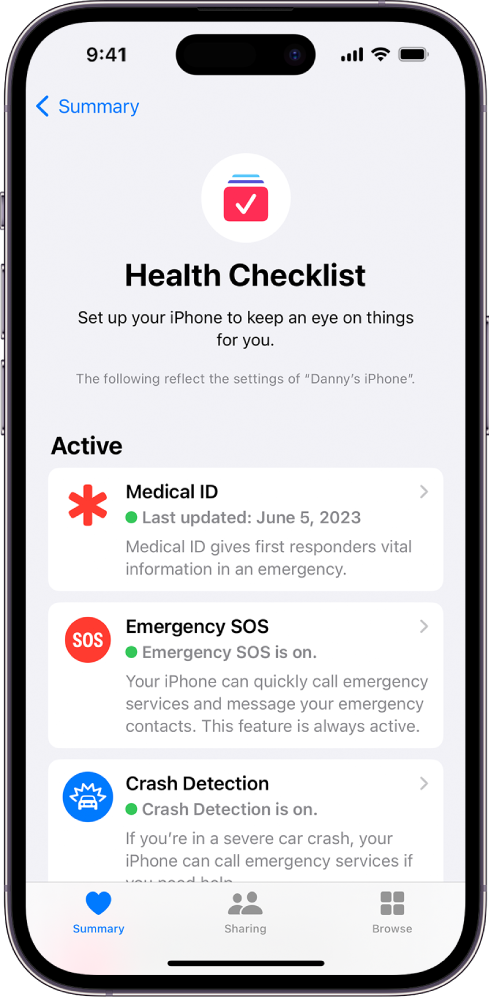

Setting up a Medical ID in the iPhone Health app is a great way to ensure that important medical information is available to first responders in case of an emergency. Here’s how you can set it up:
### 1. **Open the Health App**
- Open the **Health** app on your iPhone. It comes pre-installed with iOS.
### 2. **Access Medical ID**
- Tap on your profile picture or your initials in the top right corner.
- Select **Medical ID** from the list.
### 3. **Set Up Your Medical ID**
- If you’re setting it up for the first time, tap **Get Started**. If you’ve already set it up and want to make changes, tap **Edit** in the top right corner.
### 4. **Enter Your Information**
- **Name and Photo**: Your name should already be there, but you can add a photo if you want.
- **Medical Conditions**: Enter any medical conditions you have (e.g., asthma, diabetes).
- **Medical Notes**: Add any additional medical notes that might be important.
- **Allergies & Reactions**: List any allergies you have (e.g., penicillin, peanuts).
- **Medications**: Enter any medications you’re currently taking.
- **Blood Type**: If you know your blood type, you can enter it here.
- **Organ Donor**: Indicate whether or not you’re an organ donor.
- **Weight & Height**: Optional but useful information.
### 5. **Add Emergency Contacts**
- Scroll down to the **Emergency Contacts** section.
- Tap **Add Emergency Contact**.
- Choose a contact from your list and specify your relationship to them (e.g., mother, friend).
- You can add more than one emergency contact if you like.
### 6. **Enable Emergency Access**
- Make sure to turn on the **Show When Locked** option. This allows your Medical ID to be accessible from the lock screen without unlocking your phone.
- Also, turn on **Share During Emergency Call** if you want your Medical ID to be automatically shared with emergency services during a call in supported regions.
### 7. **Save Your Medical ID**
- Once you’ve filled in all the necessary information, tap **Done** in the top right corner to save your Medical ID.
### 8. **Accessing Medical ID in an Emergency**
- In an emergency, others can access your Medical ID by:
- On the Lock Screen, swipe up or press the Home button (depending on your iPhone model).
- Tap **Emergency** and then **Medical ID**.
This setup ensures that vital information is readily available in case of an emergency.-medica