
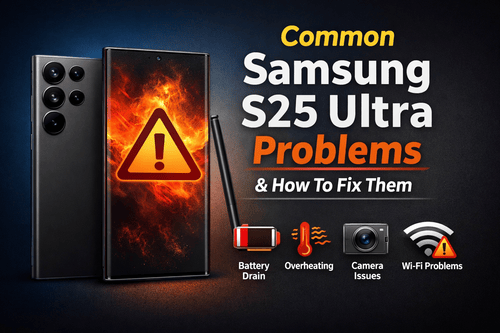

The Samsung Galaxy S25 Ultra is one of the most powerful smartphones ever released. With cutting-edge AI features, an advanced camera system, premium display technology, and flagship-level performance, Samsung once again pushed smartphone innovation forward.
However, no smartphone is perfect — even a premium flagship like the S25 Ultra can develop issues after regular usage, software updates, or accidental settings changes. Many users worldwide have already reported common performance glitches, battery concerns, heating problems, connectivity issues, and camera inconsistencies.
The good news?
Most Samsung S25 Ultra problems can be fixed at home without visiting a repair center.
In this detailed guide, we’ll explore the most common Samsung S25 Ultra problems and practical solutions that actually work.
1. Samsung S25 Ultra Battery Draining Fast
Battery drain is currently one of the most reported concerns among early users.
Why It Happens
-
Background apps constantly syncing data
-
High refresh rate enabled all day
-
AI features running continuously
-
Poorly optimized apps after updates
-
Always-On Display usage
How To Fix Battery Drain
Check Battery Usage
Go to:
Settings → Battery → Battery Usage
Identify apps consuming abnormal power.
Enable Adaptive Battery
Samsung’s AI learns usage habits and limits background activity.
Reduce Screen Refresh Rate
Switch from 120Hz to Adaptive or Standard when battery is low.
Disable Background Apps
Settings → Apps → Select App → Restrict Battery Usage
Turn Off Unused Features
Disable:
-
Nearby Device Scanning
-
Bluetooth scanning
-
Location access for unused apps
Most users notice up to 25–30% battery improvement after optimizing these settings.
Contact For Fix within 30 Minutes
2. Overheating Issues During Gaming or Charging
High-performance processors generate heat, especially during heavy tasks.
Common Causes
-
Long gaming sessions
-
Fast charging while using the phone
-
Background downloads
-
Software bugs after updates
Fix Samsung S25 Ultra Heating Problem
Remove phone case while charging
Avoid gaming during charging
Update system software regularly
Close background apps before gaming
Use an original Samsung charger only
If overheating happens frequently, restart the device in Safe Mode to check whether third-party apps are responsible.
Also Read: Samsung Galaxy S25 Ultra Heating Issue? Here's the Real Reason and Fix
3. Camera Focus or Blurry Photo Problems
The S25 Ultra camera system is powerful, but some users experience focus delays or inconsistent image quality.
Possible Reasons
-
Dirty camera lens
-
Software optimization delay
-
Camera app cache issues
-
Third-party camera apps interfering
Solutions
Clean camera lenses gently
Reset Camera Settings
Camera → Settings → Reset Settings
Clear Camera Cache
Settings → Apps → Camera → Storage → Clear Cache
Disable Scene Optimizer temporarily
After resetting camera settings, photo clarity usually improves immediately.
4. Slow Performance or Lagging Interface
Even flagship phones can slow down over time.
Why Lag Happens
-
Storage nearly full
-
Background apps running continuously
-
Animation overload
-
System cache buildup
How To Speed Up Samsung S25 Ultra
Restart phone weekly
Keep storage below 80% capacity
Reduce animations:
Settings → Accessibility → Visibility Enhancements
Use Device Care Optimization
Settings → Battery & Device Care → Optimize Now
A quick optimization often restores smooth performance.
5. Wi-Fi or Network Connectivity Problems
Many users notice unstable Wi-Fi or signal drops.
Causes
-
Router compatibility issues
-
Software update bugs
-
Network configuration errors
Fix Connectivity Issues
Reset Network Settings
Settings → General Management → Reset → Reset Network Settings
Toggle Airplane Mode for 30 seconds
Forget and reconnect Wi-Fi network
Update carrier settings
If mobile signal remains weak, reinsert SIM or switch preferred network type.
6. Fingerprint Sensor Not Working Properly
Ultrasonic fingerprint sensors can occasionally struggle.
Reasons
-
Screen protector interference
-
Wet or dusty fingers
-
Incorrect fingerprint registration
Fix Fingerprint Issues
Re-register fingerprints
Enable Touch Sensitivity
Settings → Display → Touch Sensitivity
Clean screen regularly
Avoid thick tempered glass protectors
Adding the same fingerprint twice improves recognition speed.
7. Fast Charging Not Working
Some users report slow charging despite using fast chargers.
Possible Causes
-
Cable damage
-
Charging port dust
-
Disabled fast charging settings
Fix Charging Problem
Enable Fast Charging
Settings → Battery → Charging Settings
Clean charging port carefully
Use original USB-C cable
Restart device before charging
If charging fluctuates, moisture detection may be triggered — allow the port to dry completely.
8. Apps Crashing or Freezing
App crashes usually appear after major Android or One UI updates.
How To Fix App Crashes
Update apps via Play Store
Clear App Cache
Reinstall problematic apps
Update system software
If multiple apps crash simultaneously, wipe cache partition using recovery mode.
9. Bluetooth Connection Issues
Bluetooth disconnections often affect smartwatches or car systems.
Fix Bluetooth Problems
Reset Bluetooth connections
Remove paired devices and reconnect
Disable battery optimization for Bluetooth apps
Restart both devices
Most pairing issues disappear after resetting connections.
10. Touchscreen Not Responding Properly
Unresponsive touch areas can be frustrating.
Causes
-
Screen protector quality
-
Software glitch
-
Moisture or dirt
Solutions
Enable Touch Sensitivity
Remove low-quality screen protector
Restart phone
Check touchscreen using Samsung diagnostic tool
Dial:
*#0*#
Run touch test manually.
11. Software Update Problems
Some users experience bugs after updates.
Recommended Fix
Clear system cache partition
Backup and perform factory reset (if severe)
Install updates only after stable release feedback
Major updates sometimes need optimization time.
12. S Pen Connectivity or Lag Issues
The S Pen remains one of Samsung’s standout features.
Fix S Pen Problems
Reset S Pen:
Settings → Advanced Features → S Pen → Reset
Charge S Pen properly
Remove magnetic phone cases
Magnetic accessories often interfere with S Pen signals.
Preventive Tips to Keep Samsung S25 Ultra Running Smoothly
-
Restart device once every week
-
Avoid installing unknown apps
-
Keep storage optimized
-
Update software regularly
-
Use certified accessories
-
Avoid extreme temperatures
Preventive maintenance dramatically reduces future problems.
FAQs — Samsung S25 Ultra Problems
1. Why is my Samsung S25 Ultra battery draining so fast?
Battery drain usually occurs due to background apps, high refresh rate usage, or AI features running continuously. Optimizing battery settings and limiting background activity can fix the issue.
2. Does Samsung S25 Ultra have overheating problems?
Overheating can occur during gaming or fast charging, but it is generally temporary and can be resolved by closing background apps and avoiding phone usage while charging.
3. How do I fix Samsung S25 Ultra camera focus issues?
Clean the lens, reset camera settings, and clear camera cache to restore proper autofocus performance.
4. Why is my Samsung S25 Ultra slow?
Performance issues typically happen when storage is nearly full or too many apps run in the background. Device optimization improves speed instantly.
5. How can I improve Samsung S25 Ultra battery life?
Enable Adaptive Battery, reduce brightness, disable unnecessary features, and restrict background apps.
6. Why is fast charging not working on my Samsung S25 Ultra?
Check charging settings, cable condition, charging port cleanliness, and ensure fast charging is enabled.
7. How do I fix fingerprint sensor problems?
Re-register fingerprints, enable touch sensitivity, and avoid thick screen protectors.
8. Why are apps crashing on Samsung S25 Ultra?
App crashes often occur after updates. Updating apps or clearing cache usually resolves the issue.
9. Can software updates cause Samsung S25 Ultra problems?
Yes, temporary bugs may appear after updates but are usually fixed in later patches.
10. When should I visit a repair technician?
If hardware issues like screen damage, charging failure, or persistent overheating continue after troubleshooting, professional repair is recommended.
Conclusion
The Samsung Galaxy S25 Ultra remains one of the most advanced smartphones available today. While minor issues may appear during daily usage, most problems are software-related and easily fixable without professional repair.
Understanding common issues and applying the right troubleshooting steps helps extend your device’s lifespan while maintaining peak performance.
With proper care, regular updates, and optimized settings, your Samsung S25 Ultra can deliver a smooth flagship experience for years.
If you have tried the advice above and your phone is still not working, let us look at your phone. Request a Quote at Repair My Phone Today. We have 4 stores walk-in to a local store or mail in your device for a free estimate.
1. Repair My Phone Today
25 Market Square, Bicester OX26 6AD, United Kingdom
2. Repair My Phone Today
7 New Inn Hall Street, Oxford OX1 2DH, United Kingdom
3. Repair My Phone Today
99 St Aldates, Oxford OX1 1BT, United Kingdom
4. Repair My Phone Today
207 Banbury Road, Oxford OX2 7HQ, United Kingdom